Command palette
Navigate, find community content and talk to Denbot from anywhere in Storyden.
The command palette is Storyden's site-wide command prompt. It brings navigation, content search and optional Robot chat into one place, without needing to leave the page you're on.
Open the palette
While signed in, press Ctrl+K (Cmd+K on macOS) from anywhere in Storyden. Start typing in Ask, search or command… to narrow the list. Use the ↑ and ↓ arrow keys to choose an item and Enter to select it, or click it directly.
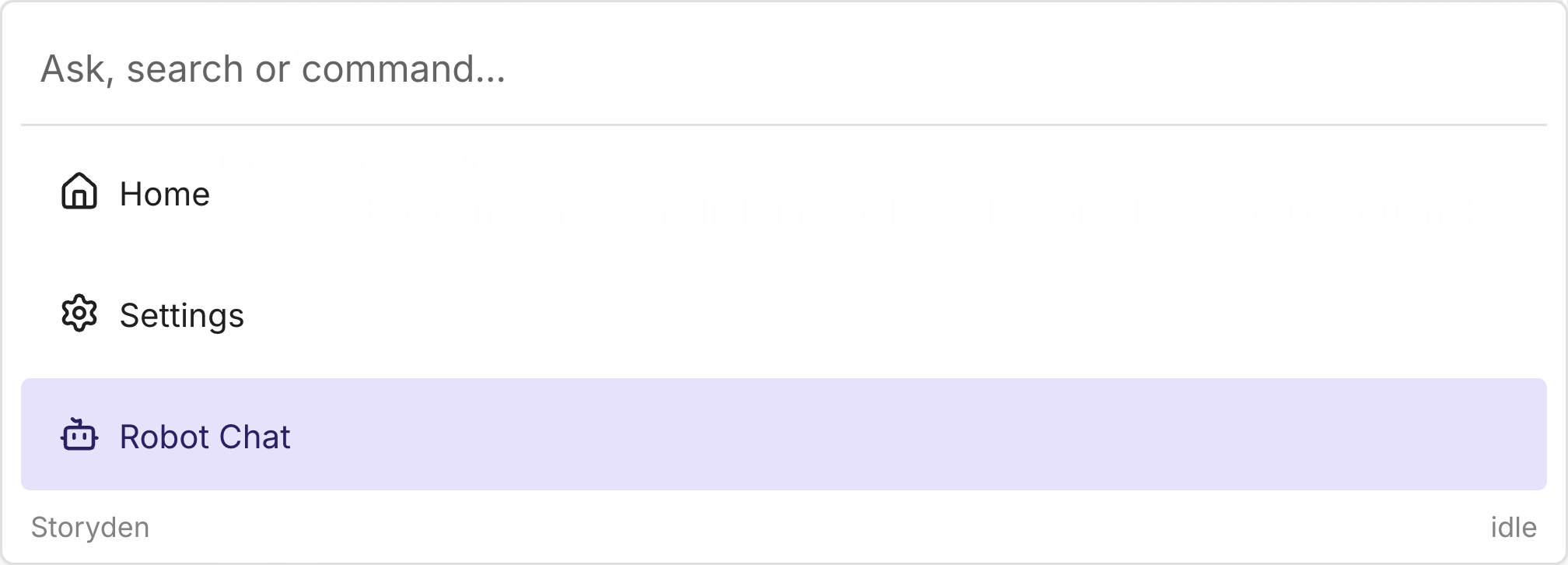
Navigate and find content
Type Home or Settings to jump to those areas. Administrators also have an Admin command. A leading slash, such as /settings, narrows the palette to commands rather than searching community content.
For content, start typing a title or name. Matching discussions, replies, Library pages, collections and members can appear below the input, with icons and labels identifying what each result is. Select a result to open it.
Navigation and search work without a model provider. Robot chat is an additional capability when Robots are set up and your account has the Use robots permission.
Start a conversation with Denbot
You can start a chat in two ways:
- Type a message directly. If it doesn't match any commands or search results, press Enter to send it to Denbot and begin a session.
- Choose Robot Chat. If your words match an existing item, clear the input and select Robot Chat first. Then type your message and press Enter.
When a navigation command or search result is highlighted, Enter opens that item. Choosing Robot Chat first makes it explicit that you want to talk to Denbot.
The conversation appears inside the palette, where you can read replies and send follow-up messages. These are the same shared sessions available in Robots → Chats: other members with access can participate too. See Chats and Denbot for group chats, tool activity and working with specialists.
Return to the page
Press Escape to close the command list. From a Robot conversation, the first Escape returns to the command list; press it again to close the palette. Ctrl+K (Cmd+K on macOS) also toggles the palette open or closed.