Set up Robots
Connect a model provider and choose which trusted members can use Robots.
Open Settings → Robots (/admin/robots). This is where you configure model providers, the default model, external MCP servers and workspace templates.
- Open a provider, enter its API key, enable it, and choose Save.
- Use Refresh to retrieve its available models if they have not loaded.
- Select a Default model and save it.
The settings screen shows Available when at least one provider is enabled and a default model is selected. Setup incomplete means a provider is enabled but the default model is still missing.
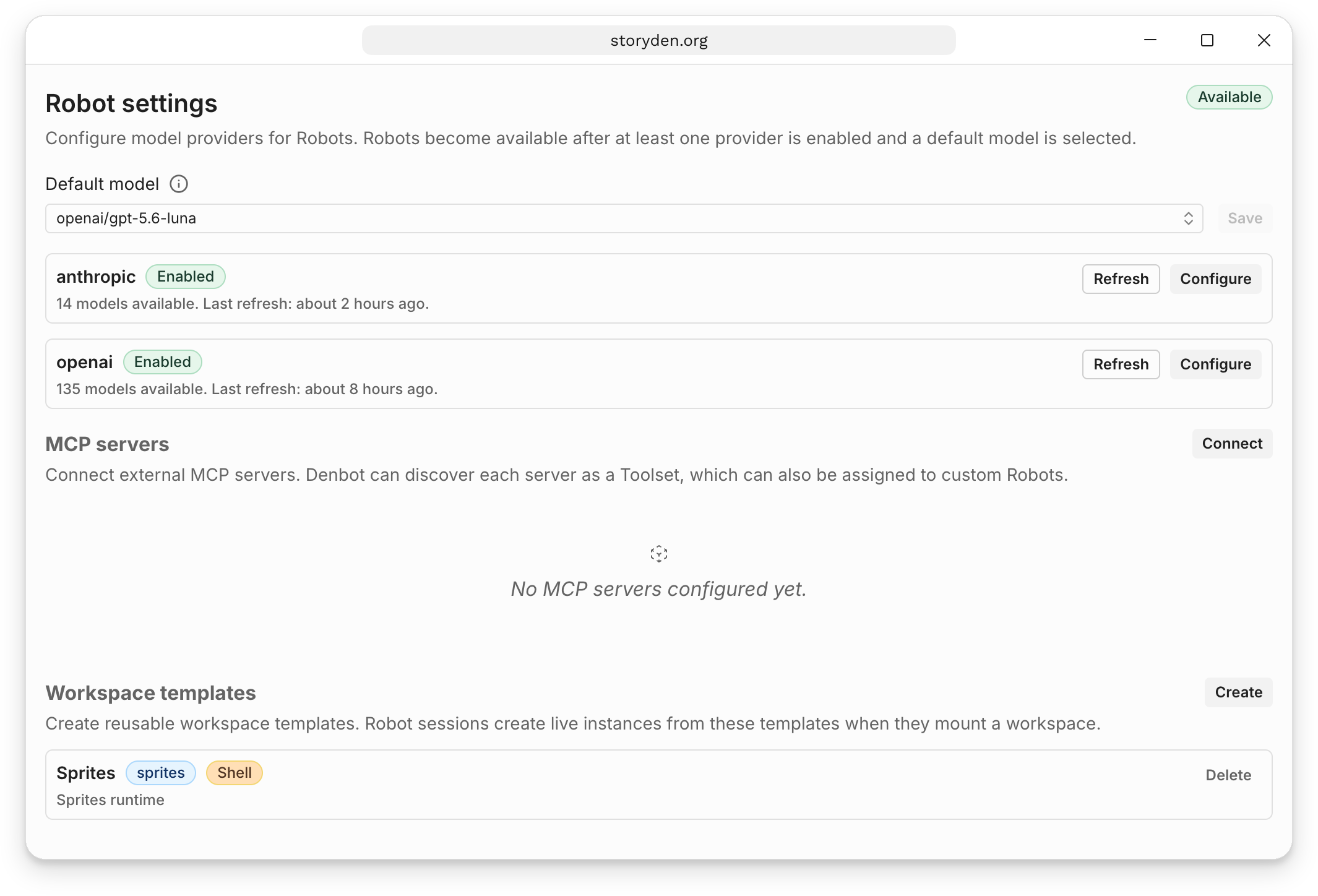
Storyden includes OpenAI and Anthropic providers. Plugins can supply additional model providers. The model list comes from the providers you have configured; you do not need to enter a model identifier by hand in the UI.
Robot provider settings are separate from the LANGUAGE_MODEL_PROVIDER configuration used by Autofill and Semdex. Enabling one does not configure the other.
Requests are sent to the selected model provider, including the conversation and content returned by tools. Provider usage is billed according to your provider account. Enabling Robots does not upload the whole community to a model provider at once.
Choose who can use Robots
Robots are generally intended for administrators, moderators and other trusted members with elevated privileges, rather than general access for every member. Model requests spend the community operator's provider credits, and open access can invite expensive or abusive usage. Start with the people who look after the community and extend access deliberately.
Assign the following permissions through Roles to decide who can use and configure Robots.
| Permission | What it allows |
|---|---|
Use robots (USE_ROBOTS) | Use Robot chats, read shared sessions, and use or create Toolsets. |
Manage robots (MANAGE_ROBOTS) | Create, edit and delete Robots; manage providers, MCP connections and workspace templates. |
Manage settings (MANAGE_SETTINGS) | Read and update site settings, including the default Robot model. |
Manage Trails (MANAGE_TRAILS) | Create, edit, run and inspect Trails. Robot actions also require their creator to have the Use robots permission. |
A tool's own permissions still apply. Giving a Robot a moderation tool does not give the person using it moderation permissions. Storyden checks the current account's permissions when tools execute.
Robot chats are shared with other members who have Use robots permission. Treat this as a shared working area for the team, not a private assistant.
Try the connection
Open Robots → Chats → New and send a short message to Denbot. A reply confirms that the selected model can be called. Next, try a request using content you can already read, such as finding a particular Library page.
Continue with Chats and Denbot, or create a specialist Robot for a repeatable job. If setup fails, see Troubleshooting.