Runs and results
Inspect outcomes, respond to failures and manage a Trail through its lifecycle.
Choose Run now on a Trail's detail page to start a manual run. This works while the Trail is paused and does not move its recurring schedule.
For an event Trail, a manual run has no real triggering event payload. Use a real matching event to test instructions that depend on a particular page, thread or report from that payload.
Run history shows when each run began, how it was triggered, and the result of its Robot actions. Choose View Robot session to inspect the conversation and tool calls behind a result.
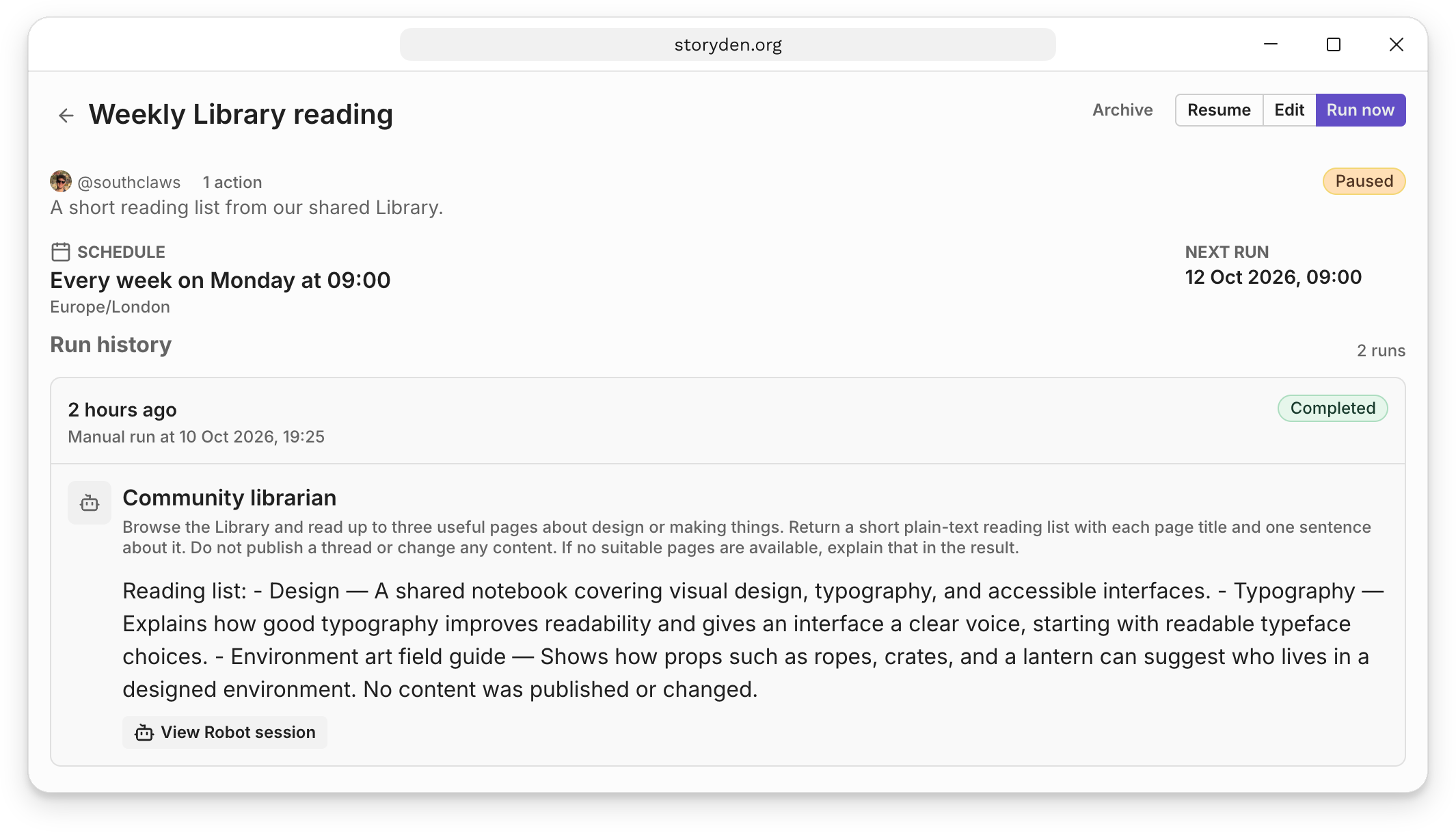
The Trail's state and the run's state are different. A paused Trail can still have a completed run in its history, and an active Trail can have a run that needs attention.
| Run state | Meaning |
|---|---|
| Queued | The run is waiting to start. |
| Running | Its actions are in progress. |
| Completed | Its actions finished successfully. Review the result for the task's actual outcome. |
| Needs attention | An action was blocked or failed. Open the result to see why. |
| Cancelled | The run ended with cancelled work. |
| Skipped | A scheduled occurrence was missed while the scheduler was offline. |
A blocked or failed action notifies the Trail's creator. The result may explain missing information or a permission problem; a failure can also come from the model provider or a tool. Inspect the session, address the cause, then use Run now if the task still needs doing.
Running Robot actions have a Cancel control. Cancelling stops further execution; it does not undo changes a tool has already made.
Pause, edit or archive
Use Pause to stop new automatic runs while keeping the Trail and its history. Resume enables it again. Pausing is separate from cancelling an action already in progress.
Use Edit to change the trigger or instructions. A Finished Trail has no future scheduled occurrences, such as a one-time task after its scheduled date. Choose Archive when you are done with a Trail: its history remains, but it can no longer be edited or run manually.
Permissions and unattended work
Robot actions execute as the Trail's creator, using that account's current permissions. Creating the Trail does not preserve a permanent copy of the creator's access. Losing permission to use Robots, being suspended, or losing access needed by a tool can prevent an action from completing.
Permission checks still apply, but there is no person present to answer a question or approve a tool call. Interactive confirmation prompts are disabled for unattended runs, and tools that need live client input are blocked. Authorised server-side tools can still change content. Assign only the tools the task needs, and give the Robot a way to report missing information instead of assuming it can always complete the job.